您现在的位置是:网站首页> 小程序设计
微信小程序原生开发
- 小程序设计
- 2026-10-21
- 50人已阅读
微信小程序原生开发
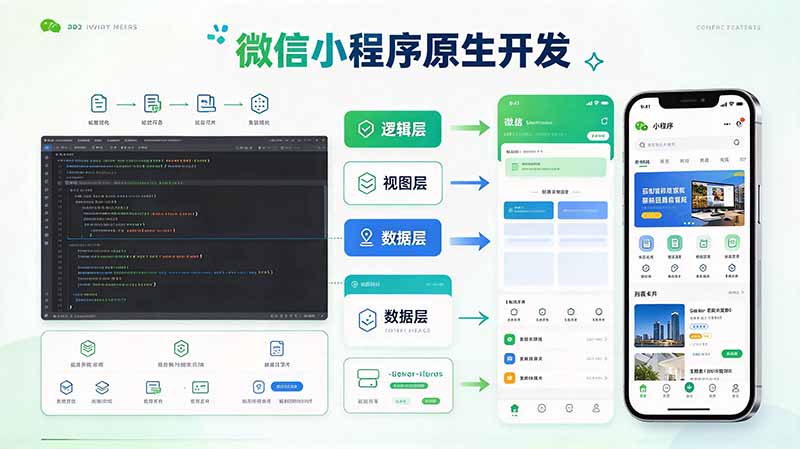
微信云开发控制面板-》微信开发者工具里

├── app.js
├── app.json
├── app.wxss
├── pages
│ │── index
│ │ ├── index.wxml
│ │ ├── index.js
│ │ ├── index.json
│ │ └── index.wxss
│ └── logs
│ ├── logs.wxml
│ └── logs.js
└── utils
app.json例子:
{
"pages": ["pages/index/index", "pages/logs/index"],
"window": {
"backgroundTextStyle": "light",
"navigationBarBackgroundColor": "#fff",
"navigationBarTitleText": "Demo",
"navigationBarTextStyle": "black"
},
"tabBar": {
"list": [
{
"pagePath": "pages/index/index",
"text": "首页"
},
{
"pagePath": "pages/logs/logs",
"text": "日志"
}
]
},
"networkTimeout": {
"request": 10000,
"downloadFile": 10000
},
"debug": true,
}
1. pages/index/index.json 【页面配置】
{
"usingComponents": {},
"navigationBarTitleText": "原生小程序示例页",
"navigationBarBackgroundColor": "#2d8cf0",
"navigationBarTextStyle": "white"
}
2. pages/index/index.wxml 【页面结构】
<!-- 数据绑定、输入、按钮、列表、条件渲染 -->
<view class="container">
<view class="title">小程序原生页面示例</view>
<!-- 双向绑定输入框 -->
<input class="input" placeholder="请输入内容" bindinput="onInputChange" value="{{inputVal}}"/>
<!-- 点击按钮 -->
<button class="btn" bindtap="handleAdd">添加到列表</button>
<!-- 条件渲染 -->
<view wx:if="{{list.length === 0}}" class="tip">列表为空,添加一条数据吧</view>
<!-- 列表循环渲染 -->
<view wx:for="{{list}}" wx:key="id" class="item">
<text>{{item.content}}</text>
<button size="mini" bindtap="handleDel" data-id="{{item.id}}">删除</button>
</view>
</view>
3. pages/index/index.wxss 【页面样式】
.container {
padding: 30rpx;
box-sizing: border-box;
}
.title {
font-size: 36rpx;
font-weight: bold;
text-align: center;
margin-bottom: 40rpx;
color: #333;
}
.input {
border: 1rpx solid #ccc;
border-radius: 8rpx;
padding: 20rpx;
margin-bottom: 20rpx;
}
.btn {
background-color: #2d8cf0;
color: #fff;
margin-bottom: 30rpx;
}
.tip {
text-align: center;
color: #999;
margin: 40rpx 0;
}
.item {
display: flex;
justify-content: space-between;
align-items: center;
padding: 24rpx;
border-bottom: 1rpx solid #eee;
}
4. pages/index/index.js 【页面逻辑】
Page({
/**
* 页面的初始数据
*/
data: {
inputVal: '',
list: []
},
// 输入框监听
onInputChange(e) {
this.setData({
inputVal: e.detail.value
})
},
// 添加
handleAdd() {
const val = this.data.inputVal.trim()
if (!val) {
wx.showToast({
title: '内容不能为空',
icon: 'none'
})
return
}
const newItem = {
id: Date.now(),
content: val
}
this.setData({
list: [...this.data.list, newItem],
inputVal: ''
})
},
// 删除
handleDel(e) {
const id = e.currentTarget.dataset.id
const list = this.data.list.filter(item => item.id !== id)
this.setData({ list })
},
/**
* 生命周期函数--监听页面加载
*/
onLoad(options) {
},
/**
* 生命周期函数--监听页面初次渲染完成
*/
onReady() {
},
/**
* 生命周期函数--监听页面显示
*/
onShow() {
},
/**
* 生命周期函数--监听页面隐藏
*/
onHide() {
},
/**
* 生命周期函数--监听页面卸载
*/
onUnload() {
},
/**
* 页面相关事件处理函数--监听用户下拉动作
*/
onPullDownRefresh() {
},
/**
* 页面上拉触底事件的处理函数
*/
onReachBottom() {
},
/**
* 用户点击右上角分享
*/
onShareAppMessage() {
}
})
小程序 AI 开发模式(以下简称此模式)提供了一套智能化的运行环境和开发框架,开发者可根据自身业务要求,参考本文档,将小程序的功能抽象为原子接口和原子组件,并封装成 SKILL,供小程序 AI 调用。
SKILL
完成特定场景任务的完整能力封装,一个小程序可封装多个 SKILLs,每个 SKILL 包含:业务说明(SKILL.md)、模型可调用能力的声明(mcp.json)、原子接口与原子组件的实现
接入方式
开发者可参考 接入方式 ,将小程序的功能抽象为原子接口和原子组件,并封装成 SKILL,供小程序 AI 调用
一个小程序可声明多个 SKILLs,SKILL 必须封装在一个独立分包里,而一个独立分包可以放置多个 SKILLs,且需要全局开启按需注入 lazyCodeLoading
// app.json
{
"lazyCodeLoading": "requiredComponents",
"subPackages": [
{
"root": "path/to/pkg",
"independent": true,
"pages": []
}
],
"agent": {
"skills": [
{
"name": "weatherSkill",
"description": "查询天气业务",
"path": "path/to/pkg/weatherSkill"
},
{
"name": "shoppingSkill",
"description": "购物业务",
"path": "path/to/pkg/shoppingSkill"
}
]
}
}
目前一个小程序最多可以声明 30 个 SKILL。
SKILL 封装
SKILL 包含业务说明(SKILL.md)、模型可调用能力的声明(mcp.json)、原子接口(apis)与原子组件(components)的实现,其目录结构如下:
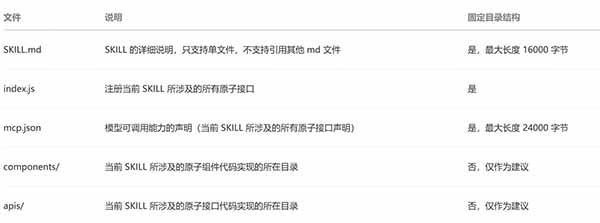
|-- path/to/pkg/weatherSkill
| |-- SKILL.md
| |-- mcp.json
| |-- components/
| |-- apis/
| |-- index.js
模型可调用能力的声明
mcp.json 包含所有原子接口的 Schema 声明,其中 componentPath 表示该原子接口返回的结果可由原子组件展示卡片。inputSchema 和 outputSchema 需遵循 JSON Schema 规范。
下面是只有一个 getWeather 的原子接口的声明示例:
{
"apis": [
{
"name": "getWeather",
"description": "查询当前位置或某地的未来一段时间的天气",
"_meta": {
"ui": {
"componentPath": "path/to/comp",
"pagePath": "path/to/page"
}
},
"inputSchema": {
"type": "object",
"properties": {
"location": {
"type": "string",
"description": "要查询天气的地点,如城市名、行政区名或经纬度。不传则默认取当前位置",
},
"days": {
"type": "number",
"description": "预报天数,范围1-15,默认7",
}
},
"required": [
"days"
]
},
"outputSchema": {}
}
]
}
处理图片/文件内容
小程序 AI 的输入框支持了多模态上传,用户可以发送图片/文件给小程序 AI。如果需要处理用户上传的图片/文件,在原子接口的声明中,在 inputSchema 定义的字段中填写 "format": "image" | "file"`,小程序 AI 会调用相应的原子接口,并将接收到的图片/文件传给对应字段。
{
"name": "EditPhoto",
"description": "帮用户 P 图",
"inputSchema": {
"type": "object",
"properties": {
"imagePath": {
"type": "string",
"description": "本地图片路径",
"format": "image"
},
"query": { "type": "string", "description": "用户的 P 图需求" }
},
"required": [ "imagePath", "query" ]
}
}
用户 query 透传
需要获取本轮用户原文时,可通过 _meta.context.query 声明由平台直接透传,无需模型复述,详见 3.9 用户 query 透传
# 小程序 AI 开发模式(MCP / Skill)完整说明
> 核心定义(微信官方):**把小程序原有业务能力拆成【原子接口(逻辑函数)】+【原子组件(结果卡片 UI)】,打包成 Skill,小程序 AI(小微 / 对话 Agent)通过 MCP 协议自动调用你的小程序能力**微信开放社...
> 和前面那种「小程序前端去调用大模型」完全反过来:
> ✅ 之前:小程序 → 调用 AI 大模型
> ✅ 现在:AI(小程序对话 Agent) → 调用你封装好的小程序 Skill(你的业务)
> ⚠️ 当前状态:Beta 内测模式,不能直接正式提审,只能开发者工具调试腾讯云开发
## 一、目录规范(Skill 必须放到独立分包)
miniprogram/
├─ skills/ # 所有skill统一放在skills目录
│ └─ todo-skill/ # 一个业务Skill,示例:待办管理
│ ├─ mcp.json # 【最重要】MCP能力声明,告诉AI:有哪些接口、参数、绑定哪个UI组件
│ ├─ index.js # Skill入口,注册所有原子接口
│ ├─ apis/
│ │ ├─ addTodo.js # 原子接口:新增待办
│ │ ├─ listTodo.js # 原子接口:查询待办
│ │ └─ completeTodo.js # 原子接口:完成待办
│ ├─ components/
│ │ └─ todo-card/ # 原子组件:AI对话里渲染结果的卡片UI
│ │ ├─ index.js
│ │ ├─ index.wxml
│ │ └─ index.wxss
│ └─ SKILL.md(可选) # 业务SOP,给AI看的业务流程说明
└─ app.json
两个核心概念
1. **原子接口 apis/**:纯逻辑,做增删查改、请求数据库、调用云函数,输入输出结构化 JSON,**不写 UI**
2. **原子组件 components/**:只负责渲染 `structuredContent`,在 AI 对话气泡里展示卡片,组件里可以绑定点击,触发下一轮工具调用
## 二、步骤总览
1. 在 `app.json` 配置独立分包,声明 skill 分包
2. 编写 `mcp.json`:给 AI 看的工具描述、JSON Schema 入参出参、绑定原子组件
3. 编写各个 **原子接口 apis/**(纯业务逻辑)
4. `index.js` 注册全部原子接口
5. 编写 **原子组件**(对话卡片 UI,接收接口返回数据)
6. 开发者工具开启【小程序 AI 开发模式】调试
7. 测试:自然语言对话,看 AI 自动路由调用对应原子接口
# 三、逐文件完整代码示例(todo-skill)
## 1. app.json 分包配置(必须)
{
"pages": [
"pages/index/index"
],
"subpackages": [
{
"root": "skills/todo-skill",
"name": "todoSkill"
}
],
"window": {
"navigationBarTitleText": "Skill演示"
},
"sitemapLocation": "sitemap.json"
}
## 2. skills/todo-skill/mcp.json(MCP 协议能力声明,AI 的工具清单)
description 写的好坏直接决定 AI 能不能选对工具,参数描述要写清楚:**取值来源、缺失怎么处理、禁止编造**微信开放社...
{
"apis": [
{
"name": "addTodo",
"description": "新增一条待办事项,用户说帮我记、添加待办的时候调用,必须拿到待办标题",
"_meta": {
"ui": {
"componentPath": "components/todo-card/index"
}
},
"inputSchema": {
"type": "object",
"properties": {
"title": {
"type": "string",
"description": "待办文字,从用户原话提取,不要编造,为空就向用户追问"
}
},
"required": ["title"]
},
"outputSchema": {
"type": "object",
"properties": {
"code": {"type": "number"},
"msg": {"type": "string"},
"structuredContent": {
"type": "object",
"properties": {
"todos": {
"type": "array",
"items": {
"type": "object",
"properties": {
"id": {"type": "string"},
"title": {"type": "string"},
"done": {"type": "boolean"}
}
}
}
}
}
}
}
},
{
"name": "listTodo",
"description": "查询全部待办列表,用户说查看待办、我的待办时调用",
"_meta": {
"ui": {
"componentPath": "components/todo-card/index"
}
},
"inputSchema": {
"type": "object",
"properties": {},
"required": []
},
"outputSchema": {
"type": "object",
"properties": {
"code": {"type": "number"},
"msg": {"type": "string"},
"structuredContent": {
"type": "object",
"properties": {
"todos": {
"type": "array",
"items": {
"type": "object",
"properties": {
"id": {"type": "string"},
"title": {"type": "string"},
"done": {"type": "boolean"}
}
}
}
}
}
}
}
},
{
"name": "completeTodo",
"description": "标记一条待办为已完成,用户说完成xx待办时调用,需要todoId",
"_meta": {
"ui": {
"componentPath": "components/todo-card/index"
}
},
"inputSchema": {
"type": "object",
"properties": {
"todoId": {
"type": "string",
"description": "待办id,从之前返回的列表里获取,不能编造,缺失则让用户选择"
}
},
"required": ["todoId"]
},
"outputSchema": {
"type": "object",
"properties": {
"code": {"type": "number"},
"msg": {"type": "string"},
"structuredContent": {
"type": "object",
"properties": {
"todos": {
"type": "array",
"items": {
"type": "object",
"properties": {
"id": {"type": "string"},
"title": {"type": "string"},
"done": {"type": "boolean"}
}
}
}
}
}
}
}
}
]
}
3. skills/todo-skill/index.js 【Skill 入口,注册原子接口】
// skill 运行时注册入口
const { registerApis } = require('mp-skills/runtime')
const addTodo = require('./apis/addTodo')
const listTodo = require('./apis/listTodo')
const completeTodo = require('./apis/completeTodo')
registerApis({
addTodo,
listTodo,
completeTodo
})
## 4. 原子接口实现(apis 目录,纯逻辑,无 UI)
### apis/addTodo.js
// 原子接口:新增待办
// ctx 是skill上下文,自带openid、storage、调用能力
module.exports = async function addTodo(ctx, params) {
const { title } = params
// 示例:用storage存储;真实项目这里调用云开发数据库
const todos = ctx.storage.getSync('todos') || []
const newTodo = {
id: Date.now().toString(),
title,
done: false
}
todos.push(newTodo)
ctx.storage.setSync('todos', todos)
return {
code: 0,
msg: '添加成功',
structuredContent: {
todos
}
}
}
apis/listTodo.js
module.exports = async function listTodo(ctx) {
const todos = ctx.storage.getSync('todos') || []
return {
code: 0,
msg: '查询成功',
structuredContent: {
todos
}
}
}
apis/completeTodo.js
module.exports = async function completeTodo(ctx, params) {
const { todoId } = params
let todos = ctx.storage.getSync('todos') || []
todos = todos.map(item => {
if (item.id === todoId) {
return { ...item, done: true }
}
return item
})
ctx.storage.setSync('todos', todos)
return {
code: 0,
msg: '已完成',
structuredContent: {
todos
}
}
}
## 5. 原子组件 components/todo-card(对话卡片 UI,渲染 structuredContent)
> 重点:组件环境没有 `wx.cloud`,数据全部来自 `structuredContent`;通过 `wx.modelContext` 接收 AI 上下文、发送后续消息,实现卡片点击继续调用 skill
components/todo-card/index.js
Component({
data: {
todos: []
},
lifetimes: {
created() {
// 获取模型上下文
this.ctx = wx.modelContext.getContext(this)
// 监听AI返回结果,拿到structuredContent
this.ctx.on(wx.modelContext.NotificationType.Result, ({ result }) => {
this.setData({
todos: (result.structuredContent || {}).todos || []
})
})
}
},
methods: {
onTapComplete(e) {
const { todo } = e.currentTarget.dataset
// 点击卡片,上行消息,驱动AI再次调用 completeTodo
this.ctx.sendFollowUpMessage({
content: [
{
type: 'text',
text: `把待办【${todo.title}】标记为完成,todoId:${todo.id}`
}
]
})
}
}
})
components/todo-card/index.wxml
<view class="card">
<view class="card-title">我的待办列表</view>
<view wx:for="{{todos}}" wx:key="id" class="item">
<text style="text-decoration: {{item.done ? 'line-through' : 'none'}}">{{item.title}}</text>
<button wx:if="{{!item.done}}" size="mini" bindtap="onTapComplete" data-todo="{{item}}">完成</button>
</view>
</view>
components/todo-card/index.wxss
.card{
background:#fff;
border-radius:16rpx;
padding:24rpx;
margin:16rpx 0;
}
.card-title{
font-size:32rpx;
font-weight:bold;
margin-bottom:20rpx;
}
.item{
display:flex;
justify-content:space-between;
align-items:center;
padding:16rpx 0;
border-bottom:1rpx solid #eee;
}
6. SKILL.md(可选,给 AI 的业务 SOP 提示词)
# 待办管理Skill
场景:用户管理待办清单
规则:
1. 用户说“帮我记xxx” → 调用 addTodo
2. 用户说“看看我的待办” → 调用 listTodo
3. 用户点击卡片上的完成按钮,自动调用 completeTodo
4. 参数缺失时,主动追问用户,禁止编造内容
# 四、调试步骤(开发者工具)
1. 微信开发者工具,基础库 ≥ 对应内测版本
2. 项目配置里开启:**小程序 AI 开发模式(MCP Skill)**
3. 安装 mp-skills 运行时(npm 依赖)
```
npm install mp-skills
```
4. 编译,打开 AI 对话面板
5. 对话测试:
- 输入:帮我记一个待办:买矿泉水
- AI 自动识别 → 调用 `addTodo` 原子接口 → 渲染 `todo-card` 原子组件
- 点击卡片【完成】按钮 → 发送跟进消息 → AI 调用 `completeTodo`
# 五、关键要点 & 踩坑清单
1. **Skill 必须分包**,不能和主页面混在一起
2. `mcp.json` 的 `description`、schema 是 AI 选工具的核心,写模糊就会调用失败、乱传参
3. **原子接口:纯逻辑,不要写 setData、不要操作 UI**;原子组件:只渲染,业务逻辑放回原子接口
4. 上下文 `ctx` 内置:`ctx.storage`、`ctx.openid`、免登录态,和小程序主态打通
5. 这是**MCP(小程序版 MCP,不是标准 MCP)**,是 AI 调用小程序,不是小程序调用 AI
6. 目前 Beta 内测,**不能直接上传正式版审核**,仅用于本地调试验证能力编排腾讯云开发
7. 权限:用户身份、storage 和主小程序互通,登录态共享
# 六、对比两种 AI 方案(避免混淆)

# 微信小程序接入云开发 AI(wx.cloud.extend.AI)完整步骤 + 全套代码
> 方案:**云开发扩展 AI,前端直接流式对话**(混元大模型)
> 适合:原生小程序、聊天问答、文案生成;
> 限制提醒:AI 对话属于深度合成类目,**个人主体无法上线,仅开发调试,企业主体才能提交审核上架**
> 前置条件:微信开发者工具、注册小程序、开通【云开发 CloudBase】
## ✅ 整体流程概览
1. 小程序后台开通云开发,拿到环境 ID
2. 开发者工具开启云开发、基础库版本调到 ≥3.7.1(推荐 3.15+)
3. app.js 初始化云环境
4. 新建 AI 聊天页面(4 文件:wxml/wxss/js/json)
5. 调试、看计费控制台、了解限流与风控
-
# 第一步:后台开通云开发
1. 打开 [微信公众平台](https://mp.weixin.qq.com) → 你的小程序 →【云开发】
2. 开通云开发,选择按量付费(免费额度足够调试)
3. 进入云开发控制台 → 复制 **环境 ID(env)**,后面代码要用
4. 左侧菜单找到【扩展能力】→【AI】,开通 AI 扩展(免费额度可以测试混元)
> ⚠️ 重要:开通 AI 扩展之后,这个云环境才能使用 `wx.cloud.extend.AI`
# 第二步:开发者工具项目配置
1. 新建【不使用云模板】原生小程序项目
2. 详情 → 本地设置:
- 勾选:**不校验合法域名、web-view(开发用,上线要关掉)**
3. 详情 → 基础库版本:调到 `3.15.1` 或者更高
4. app.json 先注册聊天页面:
{
"pages": [
"pages/index/index",
"pages/aiChat/aiChat"
],
"window": {
"backgroundTextStyle": "light",
"navigationBarBackgroundColor": "#fff",
"navigationBarTitleText": "AI演示",
"navigationBarTextStyle": "black"
},
"sitemapLocation": "sitemap.json"
}
第三步:app.js 初始化云开发(必须!)
App({
onLaunch() {
// 替换成你自己的云环境ID
wx.cloud.init({
env: "cloudbase-xxxxxx",
traceUser: true
})
}
})
# 第四步:AI 聊天页面全套代码
新建文件夹 `pages/aiChat`,里面 4 个文件:
## 1. aiChat.json
{
"navigationBarTitleText": "AI对话",
"usingComponents": {}
}
2. aiChat.wxml
<view class="page">
<!-- 消息滚动区域 -->
<scroll-view scroll-y class="chat-box" scroll-top="{{scrollTop}}">
<view wx:for="{{msgList}}" wx:key="index" class="msg-item {{item.role}}">
<view class="msg-content">
<text>{{item.content}}</text>
</view>
</view>
<view wx:if="{{loading}}" class="msg-item assistant">
<view class="msg-content">AI思考中...</view>
</view>
</scroll-view>
<!-- 输入区域 -->
<view class="input-wrap">
<textarea
class="input"
placeholder="请输入你的问题"
value="{{inputText}}"
bindinput="onInputChange"
auto-height
></textarea>
<button bindtap="sendMsg" disabled="{{loading}}" size="mini">发送</button>
</view>
</view>
3. aiChat.wxss
page {
background-color: #f5f5f5;
height: 100vh;
display: flex;
flex-direction: column;
}
.chat-box {
flex: 1;
padding: 20rpx;
box-sizing: border-box;
}
.msg-item {
margin: 20rpx 0;
display: flex;
}
.msg-item.user {
justify-content: flex-end;
}
.msg-item.assistant {
justify-content: flex-start;
}
.msg-content {
max-width: 70%;
padding: 20rpx 24rpx;
border-radius: 12rpx;
line-height: 1.6;
font-size: 28rpx;
}
.user .msg-content {
background: #07c160;
color: #fff;
}
.assistant .msg-content {
background: #ffffff;
color: #333;
}
.input-wrap {
display: flex;
gap: 16rpx;
padding: 20rpx;
background: #fff;
align-items: flex-end;
box-sizing: border-box;
}
.input {
flex: 1;
border: 1rpx solid #ddd;
border-radius: 8rpx;
padding: 16rpx;
min-height: 60rpx;
}
4. aiChat.js(核心 AI 流式调用代码)
Page({
data: {
msgList: [], // 对话历史
inputText: '', // 输入框文字
loading: false,
scrollTop: 0
},
// 输入框监听
onInputChange(e) {
this.setData({
inputText: e.detail.value
})
},
// 发送消息
async sendMsg() {
const question = this.data.inputText.trim()
if (!question || this.data.loading) return
// 追加用户消息
const userMsg = {
role: 'user',
content: question
}
const newMsgList = [...this.data.msgList, userMsg]
this.setData({
msgList: newMsgList,
inputText: '',
loading: true
})
this.scrollBottom()
try {
// 获取AI实例
const ai = wx.cloud.extend.AI
const model = ai.createModel('cloudbase')
// 流式请求
const stream = await model.streamText({
messages: newMsgList,
// model: "hunyuan-lite" // 可选指定模型,默认混元lite
})
// AI返回的增量片段
let aiContent = ''
for await (const chunk of stream) {
aiContent += chunk
// 实时更新AI回答
this.setData({
msgList: [...newMsgList, {
role: 'assistant',
content: aiContent
}]
})
this.scrollBottom()
}
} catch (err) {
console.error("AI调用失败:", err)
wx.showToast({
title: 'AI请求失败',
icon: 'none'
})
}
this.setData({ loading: false })
},
// 滚动到底部
scrollBottom() {
this.setData({
scrollTop: 99999
})
},
onLoad(options) {
}
})
# 第五步:测试 & 排错步骤
1. 保存全部文件,编译项目,跳转到 aiChat 页面
2. 输入文字发送,正常会**逐字流式输出 AI 回答**
## 常见报错
1. `wx.cloud.extend.AI is not defined`
- 原因:云环境没有开通 AI 扩展 / 基础库版本太低 /env 写错
2. 鉴权、额度不足报错
- 去云开发控制台 AI 面板看调用记录、余额、免费额度
3. 提示类目问题
- 只是本地调试没问题,提交审核会驳回(个人主体)
# 拓展方向(按需升级)
## 拓展 1:RAG 知识库(Agent,上传文档问答)
```
// 换成agent模式,需要先在云AI控制台创建Agent,拿到agentId
const ai = wx.cloud.extend.AI
const bot = ai.createBot({
agentId: "xxx"
})
const res = await bot.sendMessage({
content: question
})
```
Agent 自带知识库、引用文档来源,适合客服、文档问答。
## 拓展 2:文生图(⚠️ 必须云函数,前端不能直接调用)
需要单独写云函数调用混元图像模型,返回图片链接给小程序渲染。
## 拓展 3:不想用云开发,自己对接第三方大模型
架构:小程序 → 自己后端接口 → DeepSeek / 通义千问 API
> 优点:模型选择自由;缺点:自己处理 token、流式、鉴权、域名备案
## 拓展 4:语音输入 + 语音朗读
搭配微信【智聆语音】接口,实现语音提问、AI 语音播报。
# 上线重要提醒
1. AI 生成内容必须增加内容安全校验(wx.security.msgSecCheck),否则极易违规下架
2. 深度合成服务,企业主体、需要备案、用户协议、内容声明
3. 调用按量计费,记得设置告警,防止欠费
上一篇:小程序研发关注问题收集